Compare Two C# Files Online
Paste two versions of a C# class and see every change highlighted — edited methods, new attributes, changed LINQ chains — instantly.
Paste or drop text into both boxes, then press Compare.
Everything runs in your browser — nothing is uploaded.How to compare two C# files
- 1
Add both versions
Paste the code or drop .cs files onto the panels — classes, records, partial classes or whole source files.
- 2
Cut through formatting noise
Enable ignore-whitespace when the versions come from different formatter settings; use word granularity to see token-level edits.
- 3
Review & merge
Walk the highlighted changes, merge the versions git-style if you are consolidating, and export the result.
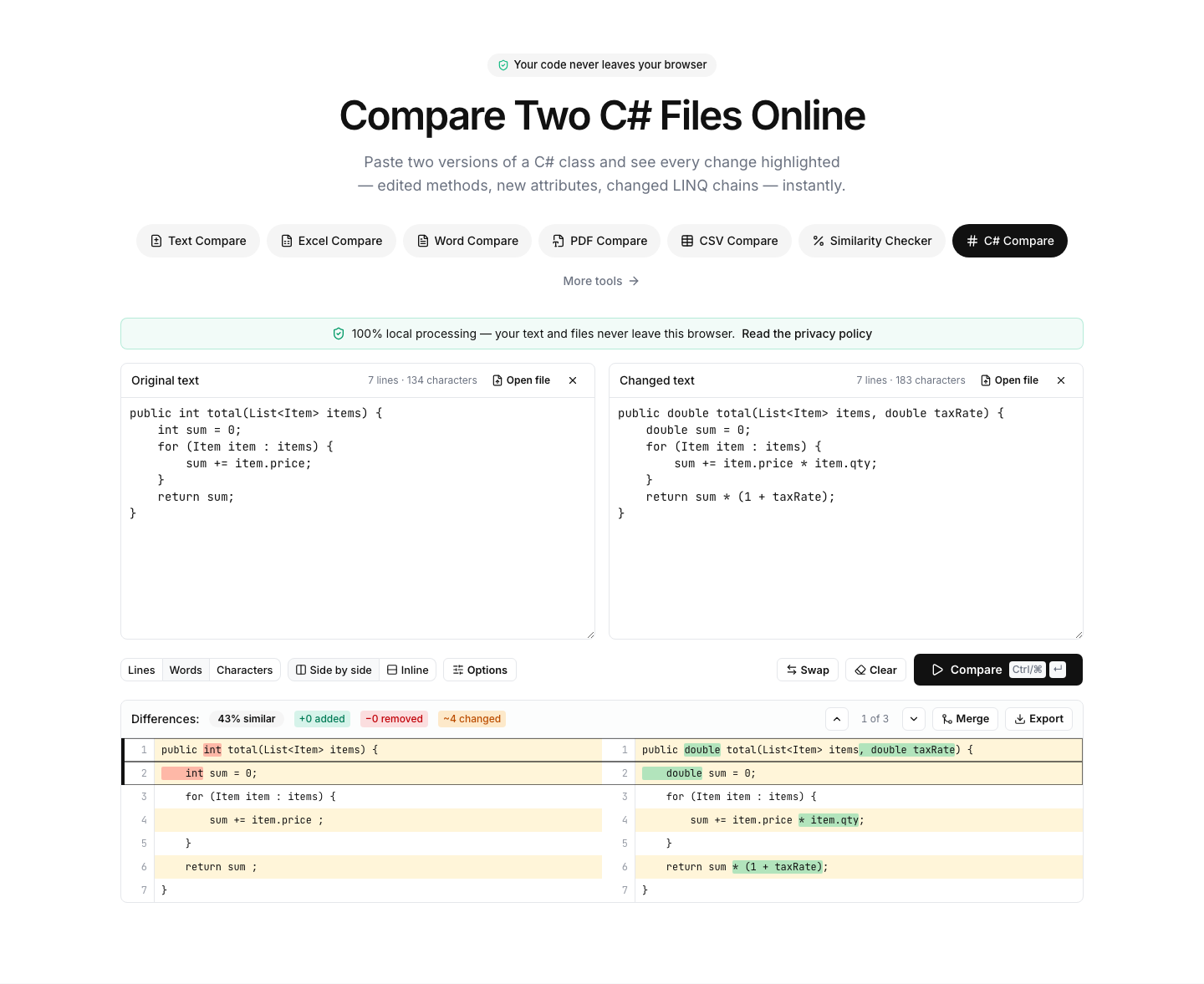
See what really changed between two C# files
Whether it is a .cs file from a colleague, generated code from two builds, or a snippet you are aligning with production, this diff shows exactly what changed: lines are aligned like a code review, and word-level highlighting marks the changed tokens inside long LINQ chains, generic signatures and attribute lists.
Formatting differences between Visual Studio, Rider and dotnet-format are neutralized with the ignore-whitespace option, so the diff concentrates on logic: a changed null-check, a new async modifier, an edited property initializer.
Typical uses: comparing scaffolded or T4-generated code between runs, reviewing a decompiled assembly against source, checking what a NuGet update changed in generated clients, or diffing two versions of a configuration or Razor file.
Two quick answers for common searches: a .cs file is a plain-text C# source file — you can open it in any editor, including this page. And to compare strings in C# code, use string.Equals (optionally with StringComparison for case or culture rules) rather than the == operator when intent matters; use string.Compare for ordering.
FAQ
C# comparison — frequently asked questions
More comparison tools
Code Compare
Diff source code in any language
JavaScript Compare
Diff, beautify and syntax-check JS code
Python Compare
Diff two Python files online
Java Compare
Diff two Java files online
Text Compare
Diff two texts with every change highlighted
Excel Compare
Find differences between two Excel or CSV spreadsheets