Compare Two Excel Files Online
Upload two spreadsheets (.xlsx, .xls, .csv) and instantly see what changed, row by row and cell by cell. Free, no signup — and your files never leave your device.
Drop a file on each side, or paste text — comparison starts automatically.
Files are processed on your device and never uploaded.How to compare two Excel files
- 1
Upload both files
Drop the original workbook on the left and the changed one on the right. Workbooks with several sheets get a sheet picker in the panel header.
- 2
Pick sheets
Compare all sheets at once or select a single sheet on each side — that is also how you compare two sheets of the same workbook: upload the same file twice and pick different sheets.
- 3
Review & export
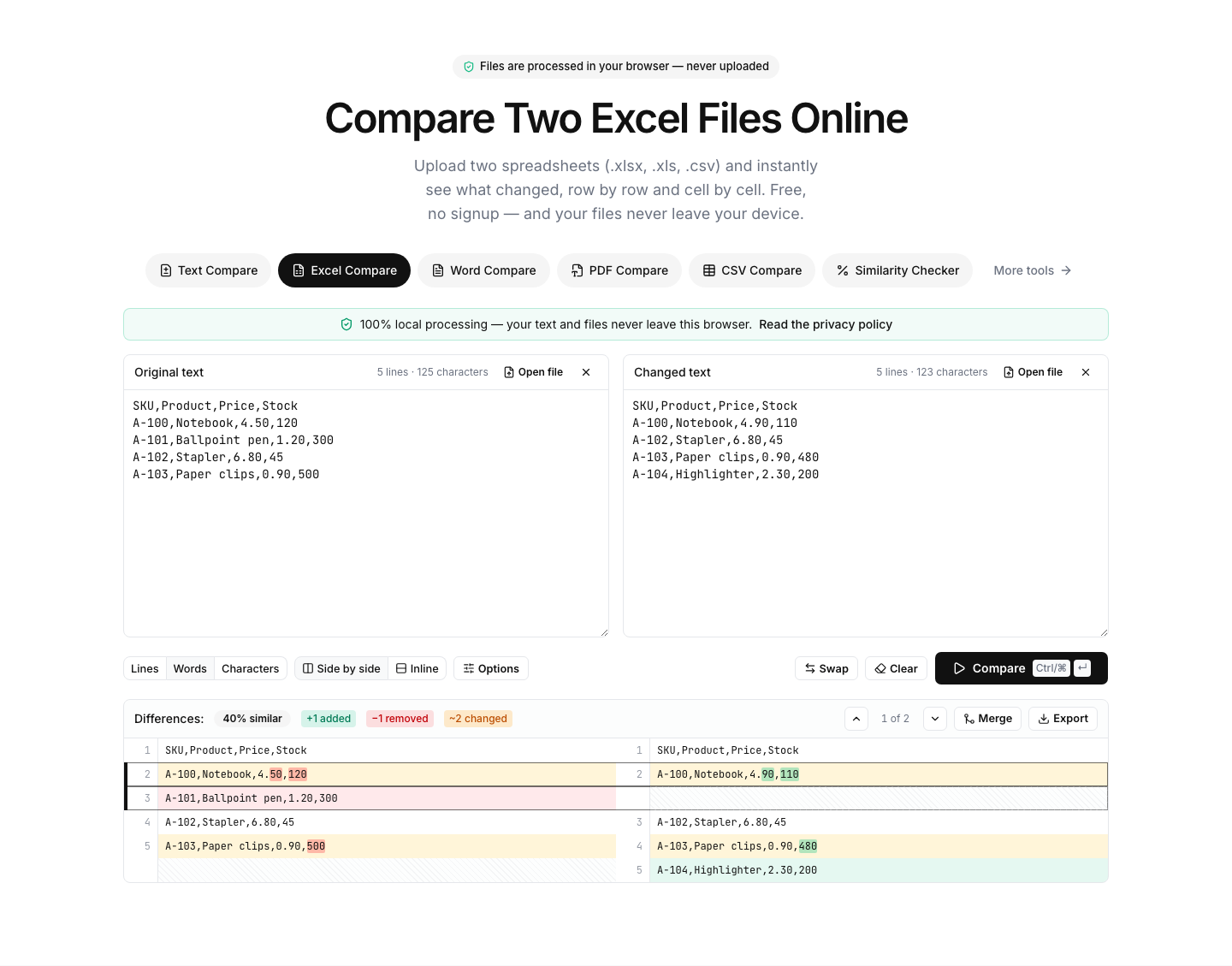
Rows are aligned like a diff: green added, red removed, yellow changed — with the changed cells highlighted inside each row. Export the result as PDF, CSV or image.
Read the full guide: How to Compare Two Excel Sheets for Differences (4 Methods)
How this online Excel diff works
This tool reads each workbook in your browser, converts every sheet to rows of cell values and aligns the two versions line by line — the same way a code diff works, but for spreadsheets. Changed rows are highlighted, and within a changed row the individual cells that differ are marked, so a single edited price or date stands out immediately even in a wide table.
Everything runs locally. The files are parsed by JavaScript inside your browser tab (in a background worker, so even large workbooks stay smooth) and are never sent to a server. That makes it safe to compare payroll sheets, customer exports, financial models and other data you would not upload to a random website.
Typical uses: checking what changed between two versions of a budget or price list, validating an export from a CRM or ERP against last month's file, reviewing a spreadsheet a colleague edited, or comparing two sheets inside the same workbook. It supports .xlsx, .xls, .xlsm, .xlsb, .ods and plain .csv/.tsv files.
Tips: if the two files contain the same rows in a different order, enable “Sort lines” before comparing. Use “Ignore whitespace” to skip trailing-space noise, and switch granularity to “Words” to see cell-level changes inside each row. Formulas are compared by their calculated values as stored in the file; formatting is not compared.
FAQ
Excel comparison — frequently asked questions
More comparison tools
Text Compare
Diff two texts with every change highlighted
CSV Compare
Compare two CSV files row by row
Word Compare
Compare two Word documents (.docx)
PDF Compare
Compare the text of two PDF files
Image Compare
Spot every difference between two images with a slider and pixel diff
List Compare
Find common, missing and merged items in two lists