How to Compare Two Excel Sheets for Differences (4 Methods)
Four practical ways to find differences between two Excel sheets: side-by-side viewing, comparison formulas, Spreadsheet Compare, and a free private online diff.
2026/08/11
You have two versions of the same spreadsheet — this month's budget before and after finance adjusted it, yesterday's system export next to today's, a price list a supplier swears they "barely touched" — and you need to know exactly which cells changed. Scanning two grids by eye does not scale: past a few dozen rows, small numeric edits are almost invisible, and the cost of missing one can be real money.
There are four dependable ways to compare two Excel sheets. The right one depends on whether you have Excel installed, which edition you have, whether the workbooks are confidential, and whether you care about formulas and formatting or only the values.
Quick answer
| Method | Needs Excel installed? | Setup effort | Best for |
|---|---|---|---|
| 1. View Side by Side | Yes | None | Quick visual scan of small sheets |
| 2. Comparison formulas | Yes | A helper sheet and one formula | Same-shaped tables, repeatable checks |
| 3. Spreadsheet Compare / Inquire | Yes (Professional Plus / enterprise editions) | Enable the add-in | Auditing formulas, formatting, and structure |
| 4. Online Excel Compare (no upload) | No | None | Fast, private diff of any two files |
Method 1: View Side by Side with synchronous scrolling
For a quick eyeball check, Excel can lock two windows together so they scroll as one:
- Open both workbooks.
- On the View tab, click View Side by Side. If more than two workbooks are open, Excel asks which one to pair with.
- Synchronous Scrolling turns on automatically in the same group — scrolling either window now moves both.
- If the two sheets live in the same workbook, click View → New Window first to get a second window, then use View Side by Side.
- Excel stacks the windows top and bottom by default; use Arrange All → Vertical if you prefer them left and right.
Strengths: zero setup, nothing to build, and it works in any desktop edition. It's genuinely useful for spotting structural differences — an inserted column, a renamed header, a block of rows that moved.
Limitations: you are the diff engine. Humans are poor at spotting that 4,512 became 4,521 somewhere in row 863, and there is no report at the end — just your own attention span. Treat this as a sanity check, not a comparison.
Method 2: Comparison formulas on a third sheet
If both sheets have the same layout — same columns, same row order — formulas give you a precise, cell-by-cell answer without leaving Excel.
The quick TRUE/FALSE grid
Insert a blank sheet, and in cell A1 enter:
=Sheet1!A1=Sheet2!A1Fill the formula right and down to cover the used range. Every FALSE marks a mismatch. Note that Excel's = operator ignores case when comparing text; use =EXACT(Sheet1!A1,Sheet2!A1) if capitalization matters.
Readable mismatch flags
A FALSE tells you where, not what. This variant shows both values in one cell:
=IF(Sheet1!A1<>Sheet2!A1,"was: "&Sheet1!A1&" | now: "&Sheet2!A1,"")Blank means identical; anything else is a difference you can read directly, filter on, or copy into an email.
Highlight differences with conditional formatting
To see the changes on the sheet itself rather than on a helper sheet:
- Select the data range on the first sheet.
- Go to Home → Conditional Formatting → New Rule → Use a formula to determine which cells to format.
- Enter
=A1<>Sheet2!A1(adjustA1to the top-left cell of your selection) and pick a fill color.
Recent versions of Excel accept references to other sheets inside conditional formatting rules; if yours is very old and rejects the reference, point the rule at a helper column instead.
Strengths: exact, auditable, and repeatable — paste in next month's export and the flags update themselves. Everything stays inside the workbook.
Limitations: formulas compare positions, so the sheets must line up. One inserted row shifts everything below it and floods the grid with false mismatches (see the row-order fix below). You're also comparing results, not formulas: if someone rewrote a formula but it still returns the same value, nothing is flagged. In recent versions of Excel you can compare the formulas themselves with =FORMULATEXT(Sheet1!A1)=FORMULATEXT(Sheet2!A1).
Method 3: Microsoft Spreadsheet Compare and the Inquire add-in
Microsoft ships a proper workbook-diff tool — but only with certain editions. Spreadsheet Compare (a standalone app) and the Inquire add-in (inside Excel) come with Office Professional Plus and the enterprise Microsoft 365 plans on Windows. They are not included in Home, Standard, or Mac editions, which is why many people who have "Excel" have never seen them.
- Launch Spreadsheet Compare from the Start menu, or enable Inquire in Excel via File → Options → Add-ins → Manage: COM Add-ins → Go, then use Inquire → Compare Files.
- Click Compare Files and pick the two workbooks.
- The results pane color-codes every difference by type: entered values, calculated values, formulas, formatting, structural changes, even macros.
Strengths: this is the only method on the list that understands workbooks as workbooks. It distinguishes a changed formula from a changed value, flags formatting edits, and handles multiple sheets in one pass — the right tool for auditing a financial model someone else modified.
Limitations: you need the right Office edition and a Windows machine, and for the everyday question — "did any of these cells change?" — its detailed, category-by-category output is more than you need.
Method 4: Compare online — without uploading your spreadsheets
Most online spreadsheet-comparison sites upload both files to a server. For payroll, customer lists, financial models, or anything covered by a confidentiality clause, that's a dealbreaker.
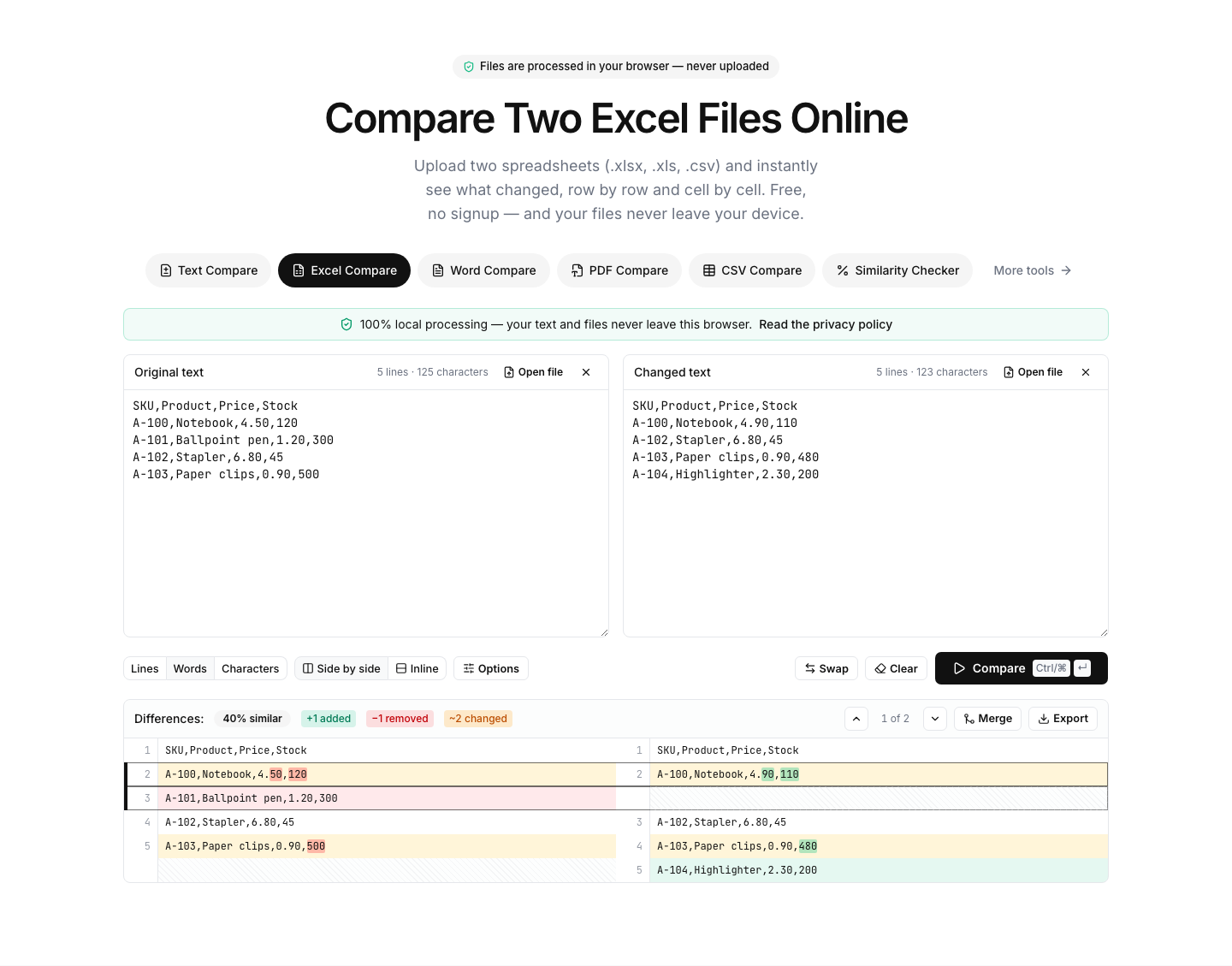
The Excel Compare tool takes a different approach: the files are parsed inside your browser and never sent anywhere.
- Open the tool — no account, no install.
- Drag and drop a file onto each side, or click Open file. It accepts
.xlsx,.xls,.ods, and.csv, and parsing runs locally in a background worker with a progress bar (and a cancel button for big files). - If a workbook has multiple sheets, a sheet selector appears on each side — pick which sheet to compare. That is also how you compare two sheets of the same workbook: load the same file on both sides and choose a different sheet on each.
- The comparison starts automatically once both files are in. Differences show side by side or inline, with changed rows highlighted and word-level highlights inside them, plus added/removed/changed counts and a similarity percentage.
- Toggle options such as ignore case, ignore whitespace, or sort lines — the diff updates as you change them — and export the result as PDF, CSV, PNG, or HTML if you need to share it.
Because everything runs locally, you can use it for files you'd never paste into a random website — open your browser's network tab and confirm that nothing is transmitted. It's also the fastest route on a machine without Excel at all.
If your data starts life as a CSV export — from a database, a CRM, an analytics dashboard — skip the spreadsheet step entirely and load both exports into the CSV Compare tool, which diffs the files row by row through the same local pipeline.
Limitations: the comparison works on extracted cell values, so formula rewrites that produce identical results and formatting-only changes are not flagged. For those, use Method 3.
Which method should you use?
- A handful of rows, both files open anyway: View Side by Side is enough.
- Same-shaped tables you compare regularly: build the formula sheet once and reuse it.
- You must know what happened to formulas, formatting, or macros: Spreadsheet Compare / Inquire — if your edition includes it.
- Two files, possibly different shapes, possibly confidential, answer needed now: the Excel Compare tool — no install, nothing uploaded.
Frequently hit problems
The rows are in a different order. Position-based methods (formulas, side-by-side) fall apart when one file is sorted differently. Sort both sheets by the same key column first (Data → Sort). In the Excel Compare tool, the sort lines option does this for you at compare time. And if the real question is simply "which entries are in one file but not the other?", paste the key column from each sheet into the List Compare tool — it instantly shows the items present in both, the items unique to each side, and a deduplicated merged list.
Formulas versus values. Value-based comparison — formulas in Excel, or any extraction-based tool — flags changed results. A formula edited to produce the same number passes silently. When the formulas are what you're auditing, use Spreadsheet Compare, or compare FORMULATEXT output in recent versions of Excel.
The files are huge. Whole-sheet conditional formatting rules and hundreds of thousands of helper-sheet formulas can make Excel crawl; limit the ranges to the data that actually matters. The Excel Compare tool parses and diffs in a background worker, so the page stays responsive and shows progress — and you can cancel rather than wait.
One file is .ods or an old .xls. Modern Excel opens both, but if you'd rather not convert anything, the Excel Compare tool reads .xlsx, .xls, and .ods directly.
The bottom line
Use View Side by Side for a quick glance, formulas for repeatable checks on same-shaped tables, and Spreadsheet Compare when formulas and formatting are the point and your Office edition includes it. For everything else — mismatched editions, no Excel on the machine, confidential files, or just wanting the answer in seconds — the Excel Compare tool diffs two workbooks privately in your browser, the CSV Compare tool does the same for raw exports, and the List Compare tool answers the "what's missing from which side?" question in real time.