How to Compare Two Lists and Find Duplicates, Intersections and Differences
Find what two lists share, what only one contains, and the merged set without duplicates — using a free local list compare tool, Excel formulas, or a diff.
2026/08/11
Quick answer
Three methods cover every version of this task — pick by where your data lives and whether order matters:
| Method | Best for | Answers all three set questions? | Data stays private? |
|---|---|---|---|
| 1. List Compare tool | Fast answers, any device, no formulas | Yes — all three at once, in real time | Yes — runs entirely in your browser |
| 2. Excel (COUNTIF + Remove Duplicates) | Lists already living in a workbook | Yes, with a separate step per question | Yes — stays in your file |
| 3. Line-by-line diff | When the order of items matters | No — it compares positions, not sets | Yes — runs entirely in your browser |
The three questions hiding in "compare two lists"
You have two lists and a nagging suspicion they don't quite match. Yesterday's newsletter export against today's — who subscribed, who left? A SKU dump from your warehouse system next to one from your storefront — which products exist on only one side? Two attendee sheets from the same event, two keyword exports from different research tools. Comparing by eye works up to a couple of dozen items; past that, you will miss entries, and the ones you miss are usually the ones that matter.
The right method depends on which question you're actually asking, because "compare two lists" is really three different questions wearing the same clothes:
- What's in both? The intersection. Attendees who are also existing customers; keywords both tools agree on.
- What's only in one list? The difference, in each direction. Emails present last month but gone today are your unsubscribes; SKUs in the warehouse but not the storefront are unlisted products.
- What's the combined list without duplicates? The union. Two keyword exports merged into one clean set, each term appearing once.
Spreadsheet formulas answer these one at a time. A purpose-built tool answers all three simultaneously — which is worth having, because in practice the question you didn't think to ask ("wait, why are 40 items missing from both directions?") is often the interesting one.
Method 1: A list compare tool (all three answers at once)
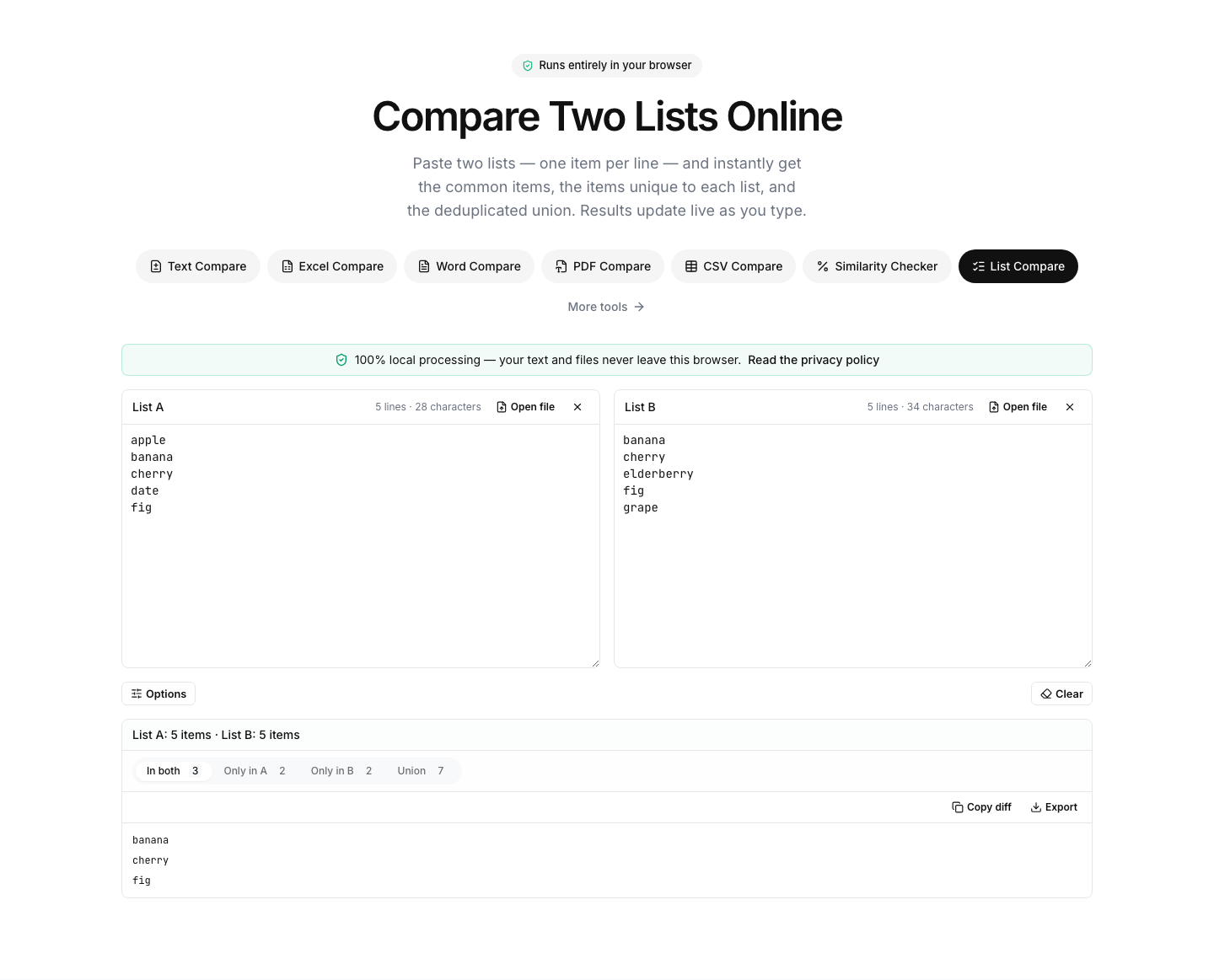
The fastest route is a tool built for exactly this job. Our List Compare tool runs entirely in your browser — nothing you paste is uploaded anywhere, there's no account, and it works on any device:
- Open the List Compare page.
- Paste the first list into the List A panel and the second into List B, one item per line. You can also drop a .txt or .csv file onto either panel.
- That's it — there is no Compare button to press. The results update in real time as you paste or edit, split into four tabs: In both (the intersection), Only in A, Only in B, and Union (everything merged, duplicates removed), each with a live item count.
- Open whichever tab answers your question, then copy the list or download it as a .txt file — the intersection for your overlap report, a one-side-only list for your unsubscribe follow-up, the deduplicated union for your master keyword file.
Four options control how items match. Trim items (on by default) strips leading and trailing whitespace, so Apple with a stray trailing space still matches Apple. Ignore case (off by default) makes Apple and apple count as one item — without it, matching is case-sensitive. Skip empty lines drops blank rows from sloppy exports, and Sort results switches the output from input order to alphabetical. Duplicates inside each list are ignored automatically, and the summary line tells you how many were skipped.
Strengths: it answers all three set questions simultaneously, updates live while you clean up the input, needs no formulas, and never sends your data anywhere — relevant when the lists are customer emails or unreleased product SKUs.
Limitations: it treats lists as sets, so it deliberately ignores ordering. "Both lists contain the same items" and "both lists are in the same order" are different claims — if position matters, see Method 3.
Method 2: Excel formulas and built-in features
If your lists already live in a spreadsheet, Excel can answer each question — you just assemble the answer yourself.
Flag matches with COUNTIF
Put the first list in column A and the second in column B, with headers in row 1. In C2, enter:
=COUNTIF($B$2:$B$1000, A2)Fill it down alongside your data. A result of 0 means that item exists only in list A; 1 or more means it also appears in list B (values above 1 reveal duplicates on the other side). Mirror the formula in column D — =COUNTIF($A$2:$A$1000, B2) — to flag items unique to list B. Filter each flag column for 0 and you have both one-side-only lists; filter for values of 1 or more and you have the intersection.
Highlight overlaps with conditional formatting
For a visual answer without formulas: select both columns, then Home → Conditional Formatting → Highlight Cells Rules → Duplicate Values. Every value that appears more than once across the selection lights up. One caveat: this also highlights items duplicated within a single column, so it shows "appears more than once somewhere," not strictly "appears in both lists." For a precise intersection, trust the COUNTIF flags.
Build the union with Remove Duplicates
Copy both lists into one column on a fresh sheet, select it, then Data → Remove Duplicates. What remains is the merged, deduplicated union — question three answered in two clicks. Work on a copy, because this edits the data in place.
When the lists are two whole spreadsheet files
If what you actually have is two versions of an exported workbook — yesterday's report and today's — formulas get clumsy fast. Instead, diff the files directly with the Excel Compare tool: drop both files onto the page and the comparison starts automatically as soon as both finish loading, highlighting every added, removed, and changed row side by side. Parsing happens locally in your browser (files up to 10 MB each), so confidential exports never leave your machine, and you can export the highlighted differences as a PDF or CSV for whoever asked.
Strengths of the Excel route: no copy-pasting out of your workbook, and the flags stay live as the data changes.
Limitations: each question needs its own setup, absolute ranges like $B$2:$B$1000 silently miss rows added below the range, and COUNTIF ignores case — ACME and acme count as a match, which may or may not be what you want. Case-sensitive matching needs a clunkier SUMPRODUCT(--EXACT(...)) construction.
Method 3: When the order of items matters
Set operations throw away sequence by design. If you're comparing two versions of a ranking — search results, a priority backlog, a league table — "both lists contain the same 50 items" is precisely not the answer you need. What you need is a positional, line-by-line diff.
Use the text compare tool for this:
- Paste one version into each panel, one item per line.
- Make sure the Sort lines option is off — sorting would destroy the ordering you're trying to inspect.
- Click Compare (or press Ctrl/Cmd+Enter). Set the comparison level to Lines.
- Read the result positionally: an item that moved from rank 3 to rank 14 shows up as removed in one place and added in another, and unchanged runs stay quiet. The added/removed/changed counters and the similarity badge give you an at-a-glance sense of how much reshuffling happened.
The same page also covers the opposite situation: if order doesn't matter but you want a diff-style view anyway, turn Sort lines on for both sides. Identical membership then lines up row for row, and only genuine additions and removals remain highlighted. The Ignore case and Ignore whitespace options live here too — useful when your lists are messy and you'd rather not clean them first — and Remove empty lines clears out blank rows from sloppy exports.
Pitfalls that cause false differences
Most "the tool says these differ but they look identical" moments come down to four culprits:
Trailing spaces. Exports from CRMs and spreadsheets love to append invisible whitespace. The List Compare tool neutralizes this out of the box — Trim items is on by default — and in the text compare tool you can tick Ignore whitespace. In Excel itself, clean a list with =TRIM(A2) filled down, then paste the results as values before running your COUNTIF flags.
Case differences. iPhone, iphone, and IPHONE are three different strings. Decide up front whether case should matter: Excel's COUNTIF ignores it by default, while the List Compare tool and the text compare tool are case-sensitive until you enable their Ignore case option. Normalizing everything with =LOWER(A2) before comparing removes the ambiguity in Excel too.
Not one item per line. Every method here assumes line-separated input. If your list arrived comma-separated — a single cell of red, green, blue — split it first: find-and-replace , with a line break (in Excel's Find and Replace, enter the replacement by pressing Ctrl+J).
Numbers stored as text in Excel. An ID stored as text in one column and as a true number in the other may fail to match depending on the function you use — the little green corner triangles are the giveaway. Normalize one side with =VALUE(A2), or convert a whole column at once with Data → Text to Columns → Finish.
One more subtlety: duplicates within one list. The List Compare tool ignores them automatically and reports how many it skipped in the summary line — so pasting a single list and reading the Union tab doubles as a quick deduplicator. In Excel, run Remove Duplicates on a copy and compare the row counts before and after to learn whether list A repeats itself.
The bottom line
Match the method to the question. For the three set questions — what's shared, what's unique, what's the merged whole — the List Compare tool answers all of them at once, in real time, without your data ever leaving the browser. If the lists live inside spreadsheets, COUNTIF flags and Remove Duplicates get you there, and two whole workbook exports are quicker to diff directly in the Excel Compare tool. And when the order of the items is the whole point, skip set logic entirely and read the changes positionally in the text compare tool with Sort lines switched off.