How to Compare Two PDF Files Online (No Upload Required)
Four practical ways to see what changed between two PDF files — including a free in-browser comparison that never uploads your documents, so contracts stay private.
2026/08/11
The signed contract that just came back, the invoice a vendor "reissued," two revisions of the same report — sooner or later you're staring at two PDFs with one question: what exactly is different? PDFs became the format of record precisely because they're hard to edit, but that cuts both ways. There are no tracked changes, no revision marks, nothing to warn you that "net 30" quietly became "net 60" on page 7. Reading both versions side by side and hoping to spot the edits is the least reliable option you have.
There are four dependable ways to compare two PDF files. Which one fits depends on whether the documents are confidential, whether you still have the source files they were exported from, and whether you need to catch visual changes or only the text.
Quick answer
| Method | Cost | Files stay private? | Best for |
|---|---|---|---|
| 1. In-browser PDF comparison | Free | Yes — nothing is uploaded | Fast text diffs of contracts, reports, and exports |
| 2. Acrobat's Compare Files | Paid (Acrobat Pro) | Yes (desktop app) | Formatting, image, and layout changes; formal review reports |
3. Compare the source .docx files | Free | Yes — processed locally | Whenever you still have the original documents |
| 4. Paste the text into a diff tool | Free | Yes | A single clause or paragraph |
Method 1: Compare the PDFs in your browser — nothing gets uploaded
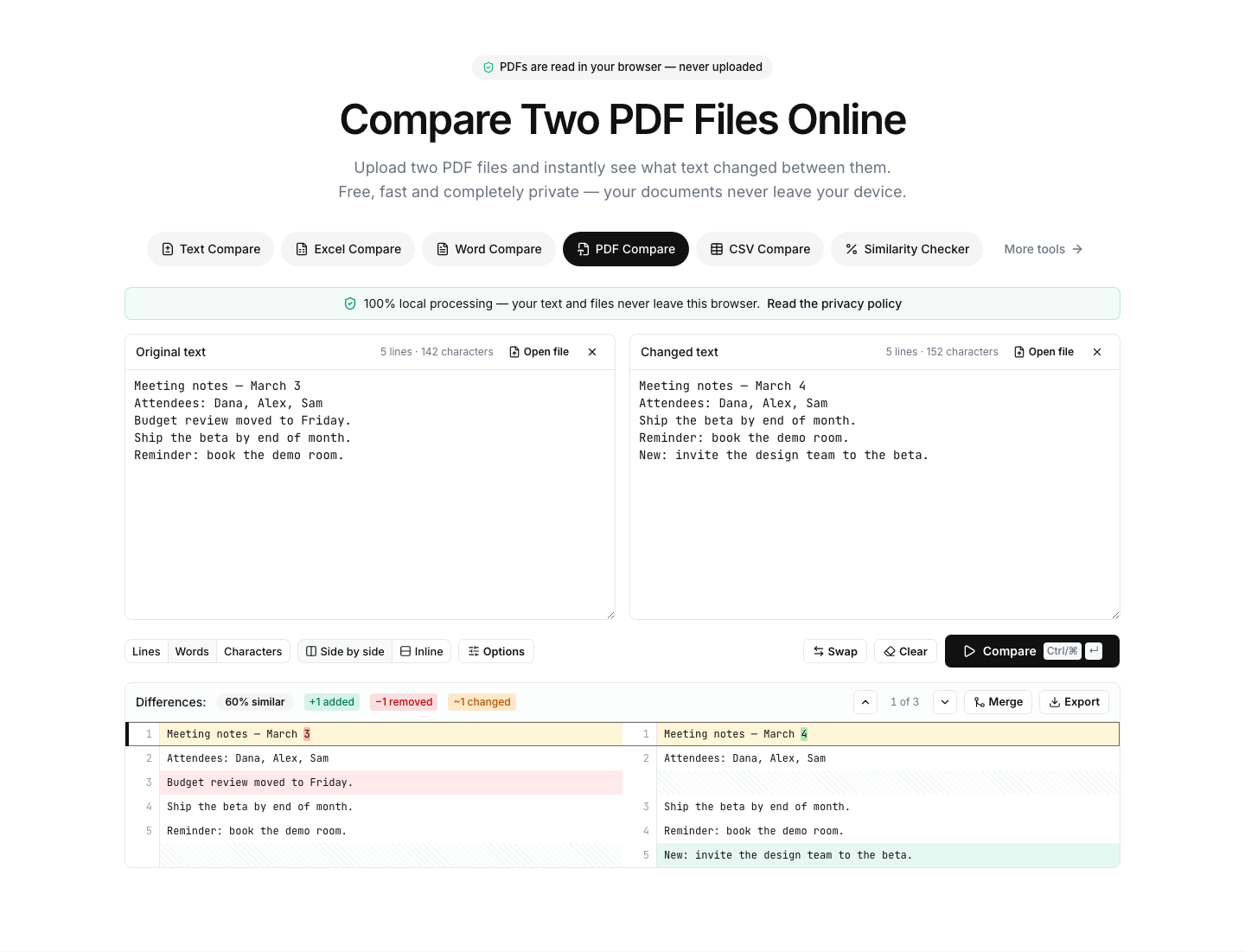
Most "compare PDF online" services work by sending both files to a server. For a contract under negotiation, an NDA, a medical record, or anything else you'd hesitate to email to a stranger, that's a deal-breaker. A safer approach is a tool that does all the work inside your browser. Our PDF Compare tool is built that way:
- Open the PDF Compare page — no account, no install.
- Drop one PDF on each side, or click Open file. Each file's text layer is extracted locally, in your browser, and the lines are rebuilt from where the text sits on each page. Large documents are processed with a progress bar and a cancel button, so the page stays responsive throughout.
- The comparison starts automatically once both files are in. Differences appear side by side, with added, removed, and changed lines highlighted; switch to the inline view if you prefer a single merged column. (You can also re-run a comparison any time with the Compare button or Ctrl/Cmd+Enter.)
- Set the comparison level to Words. This is the single most useful setting for PDFs. A PDF stores the position of text on a page, not paragraphs, so line breaks are an artifact of layout. If one version reflowed — a sentence got longer, a margin changed — many lines shift and get flagged. At word level, every changed line pair also gets word-by-word highlights inside it, so you can tell at a glance whether a flagged line contains a real edit or just a moved line break. Turning on Ignore whitespace helps too, since extraction can space identical text slightly differently.
- Export the highlighted result as a PDF, CSV, PNG, or HTML file if you need a record of the changes, and note the summary stats: added, removed, changed, and an overall similarity percentage.
Strengths: free, fast, and private. Because extraction and comparison run entirely client-side, your documents never leave your machine — you can confirm in your browser's network panel that no file is transmitted. It also works on any device with a browser, including machines where you can't install software.
Limitations: it compares text, so image swaps, font changes, and layout moves are invisible to it. Files are capped at 10 MB each. Scanned PDFs won't work at all (more on that below), and PDFs with complex multi-column layouts can extract lines in an order that doesn't match the visual reading order.
Method 2: Adobe Acrobat's Compare Files
Adobe's own comparison feature lives in Acrobat Pro — note that the free Acrobat Reader does not include it:
- Open Acrobat Pro and find Compare Files in the tools menu (in recent versions it's listed under the all-tools view).
- Choose the older file and the newer file, then click Compare.
- Acrobat produces a comparison report: a summary of how many changes it found, followed by a side-by-side review mode where you can step through each difference and filter by type — text, images, formatting, or annotations.
Strengths: Acrobat compares the rendered documents, not just their text, so it catches things text-based tools cannot: a replaced logo, a reformatted table, a paragraph moved to another page. The generated report is polished enough to attach to a formal review or send to opposing counsel.
Limitations: it requires a paid Acrobat Pro license or subscription, which is hard to justify if all you need is an occasional "what changed in the wording?" check. And even Acrobat can't read text out of a pure scan without running its OCR step first.
Method 3: Still have the source documents? Compare those instead
Ask yourself where the PDFs came from. If both versions started life as Word documents — and most contracts, proposals, and reports do — comparing the original .docx files gives a cleaner result than comparing their PDF exports.
The reason is simple: as far as any text extractor is concerned, exporting to PDF throws away the document's paragraph structure and freezes the text into positioned lines. Comparing two exports means diffing two lossy copies, with layout noise layered on top of the real edits. Comparing the sources skips all of that.
Our Word Compare tool handles this the same private way: drop the two .docx files, the text is extracted locally paragraph by paragraph, and you get the same highlighted diff, comparison levels, and exports. (Legacy .doc files aren't supported directly — save them as .docx first.) When someone sends you "the final PDF," it's often worth replying to ask for the Word file; thirty seconds of email saves you from cleaning up conversion noise.
Method 4: Copy and paste a single clause
When the dispute is about one paragraph — a liability clause, a delivery date, a job description — you don't need file handling at all:
- Select and copy the passage from each PDF in any viewer.
- Paste the old version into the left panel and the new version into the right panel of the text compare tool.
- Click Compare. Changed lines are highlighted with word-level marks inside them, so a single altered number stands out immediately.
One PDF-specific tip: text copied from a PDF usually arrives with hard line breaks in odd places, because you're copying layout lines rather than sentences. If the two passages wrap at different points, expect some flagged lines that contain no real edit — the word-level highlights inside each line will make the genuine changes obvious. For a cleaner result, paste short, comparable chunks rather than whole pages.
Which method should you pick?
- Confidential documents, text is what matters: the in-browser PDF Compare tool. Nothing is uploaded, and word-level comparison gets you a trustworthy answer in under a minute.
- You need to catch visual and formatting changes, or produce a formal report: Acrobat Pro's Compare Files, if you have a license.
- You have the original Word files: compare those in the Word Compare tool — always cleaner than diffing exports.
- One clause, right now: copy and paste into the plain text compare tool.
When PDF comparison fails — and what to do about it
The tool says no readable text was found. The PDF is probably a scan — a photograph of a page rather than digital text. Quick test: try to select text in any PDF viewer. If you can't, there's no text layer to extract, and our tool does not perform OCR. Your options are to go back to the source document, or to run the file through an OCR step elsewhere first — Acrobat Pro can recognize text in scans, and many scanner and copier apps produce searchable PDFs — then compare the OCR'd copies. Be aware that OCR introduces its own small errors, which will show up in the diff.
The file is password-protected. An encrypted PDF can't be parsed until it's unlocked, so the tool will report that it couldn't read the file. If you have the password and the right to do so, open the file in a PDF viewer and save an unlocked copy, then compare that.
Everything is flagged as changed. This is almost always line-reflow noise: one version's text wraps differently, so every line boundary moved even though few words did. Switch the comparison level to Words — the highlights inside each flagged line then show exactly which words differ, so pure reflow reads as "same words, new wrapping" instead of a wall of edits. Turning on Ignore whitespace also stops spacing-only differences from being counted as changes.
Headers, footers, and page numbers pollute the diff. Repeating furniture like "Page 12 of 40" differs on every page and shows up as changed lines. Word-level highlights make this noise easy to skim past; for a surgical check of one section, fall back to Method 4 and paste just the passage you care about.
You need to document what changed. Export the diff as a PDF to file alongside the contract, or as a CSV if you want a machine-readable list of changes for a spreadsheet or an audit trail.
The bottom line
For most everyday cases — two versions of a contract, a revised report, a reissued invoice — the free PDF Compare tool answers the question in your browser without your files ever leaving your machine; just remember to switch the comparison level to Words. Reach for Acrobat Pro when formatting and images matter and a license is available, prefer the Word Compare tool whenever the original .docx files still exist, and keep the text compare tool on hand for quick single-clause checks.