How to Compare Two URLs or Web Pages for Differences
Four practical ways to see what changed between two web pages or URL strings — diff the URLs, the visible text, the HTML source, or pixel-level screenshots.
2026/08/11
You pushed a deploy and want proof that nothing changed except what was supposed to. Or two campaign links should point to the same landing page but behave differently. Or a competitor quietly reworded their pricing page and you want to know exactly what moved. All of these are "compare two URLs" problems — but a URL can mean four different things: the address string itself, the text a visitor reads, the HTML underneath it, and the pixels on screen. Each calls for a slightly different technique, and each takes about two minutes once you know the moves.
One thing to clear up first: no purely in-browser tool can fetch two arbitrary web pages for you. Browsers deliberately stop one site from reading another site's content (the same-origin policy), so any service that accepts two URLs and "just compares them" is fetching those pages on its own servers — which means the addresses you're checking, and everything on those pages, pass through someone else's machine. Our tools have no backend at all; you grab the content yourself with a copy-paste or a screenshot, and nothing you compare ever leaves your browser.
Quick answer
| Method | What it compares | Where the input comes from | Best for |
|---|---|---|---|
| 1. Diff the URL strings | The addresses themselves | Copy from the address bar | Tracking parameters, campaign links, redirect targets |
| 2. Diff the visible text | What a reader actually sees | Select-all + copy on each page | Wording, pricing, and copy changes |
| 3. Diff the HTML source | Markup, meta tags, scripts | view-source: on each page | Deploy verification, SEO audits |
| 4. Diff screenshots | The rendered pixels | Same-viewport screenshots | Layout and CSS regressions, visual QA |
Method 1: Compare the URL strings themselves
Sometimes the pages are fine and the question is about the addresses. Why does one link work while the "identical" one doesn't? Are these two campaign URLs really the same destination with different tracking? Long URLs hide small differences well: a swapped parameter value, %20 versus +, http versus https, a trailing slash.
- Copy both URLs — from the address bar, a spreadsheet, an email, wherever they live.
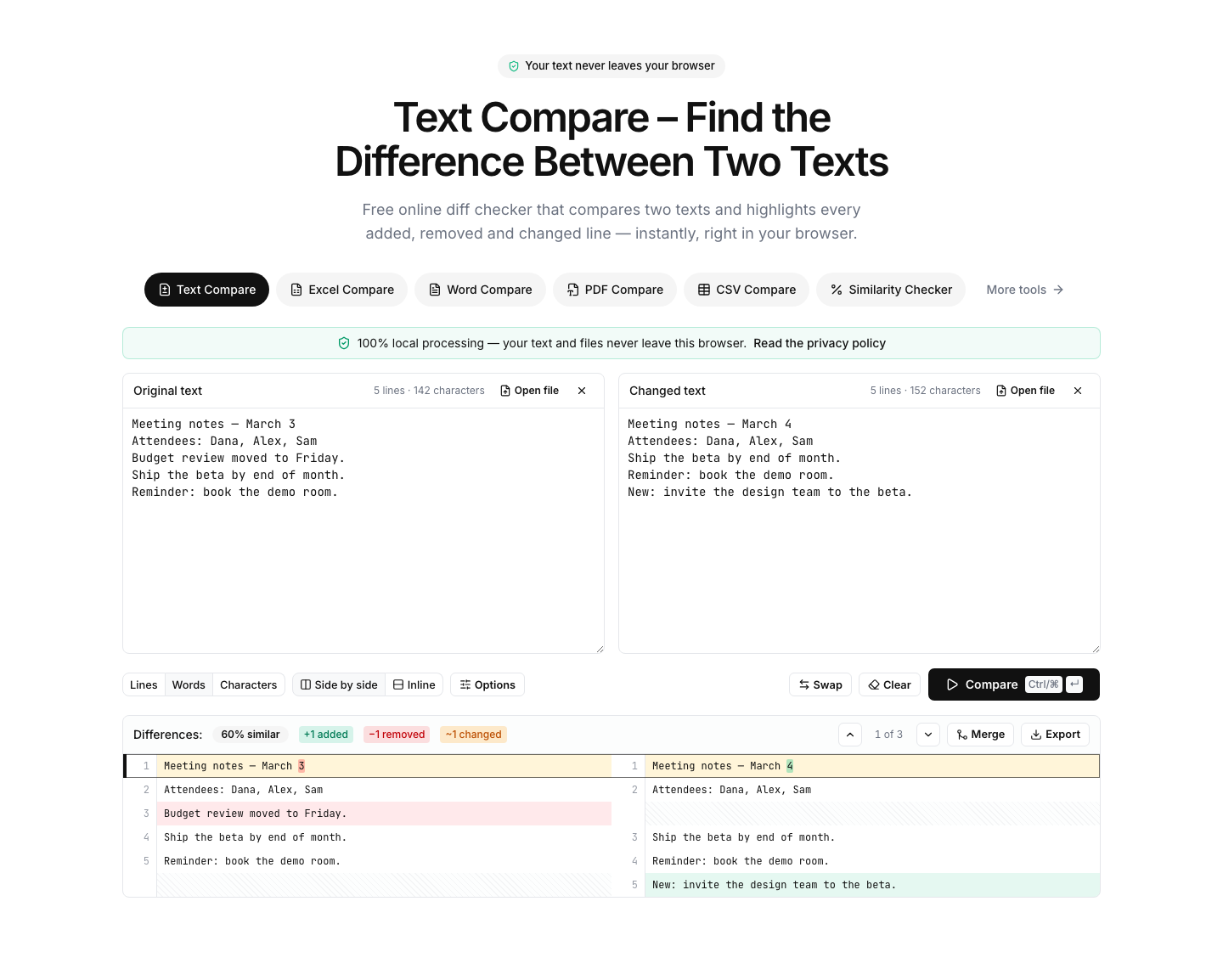
- Paste one into each panel of the text compare tool.
- Set granularity to character, so the highlight lands on the exact characters that differ rather than flagging the whole line.
- Click Compare (or press Ctrl/Cmd+Enter).
For URLs with long query strings, there's a better setup: replace the ? and every & with a line break so each parameter sits on its own line, then compare at line granularity. Turn on the sort lines option and parameter order stops mattering — you instantly see which parameters genuinely differ instead of chasing reordered utm_ values.
Strengths: instant, precise, and immune to page content entirely. This is the fastest way to spot tracking junk, malformed encodings, or a staging hostname that leaked into a production link.
Limitations: it tells you nothing about what the pages contain. Two very different URLs can serve identical pages, and one URL can serve different pages over time — for that, keep reading.
Method 2: Compare the visible text of two pages
When the question is "did the words change?" — a price, a headline, a legal clause, a product description — compare what a visitor actually reads:
- Open the first page, click anywhere in its content, and press Ctrl/Cmd+A then Ctrl/Cmd+C to copy everything.
- Paste it into the left panel of the text compare tool.
- Repeat for the second page into the right panel.
- Click Compare. Changed lines are highlighted with word-level marks inside them, and you get added/removed/changed counts plus a similarity percentage.
The single best upgrade to this workflow is reader mode. Safari and Firefox show a reader icon in the address bar, and recent versions of Chrome offer a reading mode as well. Activating it before you select-all strips navigation menus, footers, cookie banners, and ad slots, so you copy just the article or product content — which removes most of the noise before the diff even runs.
Two options are worth switching on: ignore whitespace, because select-all copies pick up different amounts of spacing and indentation from different layouts, and word granularity if paragraphs reflow differently between the two pages.
Strengths: fastest answer to "what does the page say now versus before." It also works on pages behind a login, because you're copying from your own signed-in browser — no comparison service ever needs to see your account.
Limitations: dynamic content creates noise. Timestamps, "recently viewed" widgets, rotating promotions, and personalized recommendations differ between any two loads, even of the same URL. Reader mode plus ignore-whitespace eliminates most of it; for what remains, compare only the section you care about instead of the whole page.
Method 3: Compare the underlying HTML
When the visible text matches but the pages behave differently — or you need to verify things a visitor never sees, like canonical tags, Open Graph data, structured data, or an analytics snippet — compare the source:
- In Chrome, Edge, or Firefox, type
view-source:in front of the URL (or right-click the page and choose View Page Source). Safari doesn't accept theview-source:prefix — enable the Develop menu in Safari's settings, then use Show Page Source. - Select all of the source, copy it, and paste each page's markup into the HTML Compare tool.
- Beautify both sides first. Production HTML is usually minified into a few enormous lines, and a single changed attribute makes an entire mile-long line light up. The built-in beautifier reformats both sides with identical indentation rules, so the diff becomes line-stable and readable, and word-level highlights inside changed lines pinpoint the exact attribute or text that moved.
- Compare, and export the result as PDF or HTML if you need to attach it to a ticket.
One subtlety: view-source shows the HTML the server sent, not the page after JavaScript ran. For client-rendered apps, the served source can be a nearly empty shell on both sides even when the rendered pages differ. In that case, open DevTools, right-click the <html> element in the Elements panel, and copy its outer HTML — that's the live DOM, and it diffs the same way.
Strengths: the only text method that catches invisible changes — a dropped meta description, a swapped script version, a changed canonical URL. Ideal for confirming a deploy shipped exactly what you expected.
Limitations: it's the noisiest input of the four. Build hashes, cache-busting query strings, CSP nonces, and CSRF tokens can change on every single load — two loads of the same URL rarely produce byte-identical source. A useful calibration trick: load one page twice and diff it against itself first. Whatever lights up is per-load noise you can ignore in the real comparison.
Method 4: Compare the pages visually
Some regressions never show up in text: a font that fell back to a default, a column that wrapped, a button color, an image that stopped loading. For those, compare pixels:
- Make the two captures match. Open DevTools and use the device toolbar to set an exact viewport — say 1280 × 800 — for both pages, so the screenshots come out the same size.
- Capture each page. Chrome and Edge can take a full-page capture from the DevTools command menu ("Capture full size screenshot"); Firefox has a built-in Take Screenshot with a full-page option.
- Drop both images into the Image Compare tool.
- Use the slider view to swipe between versions, or the pixel-diff view to see every changed pixel highlighted. Raise the threshold to ignore trivial rendering differences, switch on the ignore anti-aliasing option so font smoothing doesn't count as a change, and export the diff as a PNG for your bug report.
Strengths: the only method that sees layout, color, spacing, and rendering. A visual diff makes a CSS regression undeniable in a way no text diff can.
Limitations: pixel comparison is strict. If one page gains a single line of text, everything below it shifts and the whole lower page lights up. And moving content — carousels, ads, videos — will differ between any two captures. When that's a problem, screenshot just the region above the fold, or a single component, instead of the full page.
Which method should you use?
- Two links that should be equivalent — Method 1. Diff the strings; the answer is usually a stray parameter.
- "Did the wording or price change?" — Method 2, with reader mode. This is the right default for competitor pages and content reviews.
- Verifying a deploy or auditing SEO tags — Method 3, beautified. Add Method 2 if you also want a human-readable summary of copy changes.
- "It looks different but I can't say why" — Method 4. The slider view usually reveals the culprit in seconds.
For staging-versus-production checks, the strongest habit is combining two: diff the beautified HTML to confirm the code, then diff screenshots to confirm the rendering.
Frequently hit problems
The diff is drowning in noise. Timestamps, session IDs, and rotating promotions differ on every load. Use reader mode before copying text, switch on ignore-whitespace, and run the self-diff calibration from Method 3 to learn which changes are per-load artifacts rather than real edits.
The HTML source is one gigantic line. That's minification. Beautify both sides in the HTML Compare tool before comparing — never diff minified markup at line granularity.
The pages are behind a login. No problem, and no risk: you're already signed in in your own browser, so select-all copy and screenshots work normally. Never hand your credentials to a third-party comparison service to fetch pages "for you" — with this workflow, nothing is uploaded anywhere.
The screenshots are different sizes. Capture both at a fixed DevTools viewport rather than resizing windows by hand. Identical dimensions make the pixel diff meaningful.
The pages are huge. Big inputs are fine: the text compare tool runs large comparisons in a background worker with a progress bar and a cancel button, so even megabytes of copied content won't freeze the tab.
The bottom line
"Compare two URLs" is really four jobs. Diff the address strings and the visible text in the text compare tool, diff beautified markup in the HTML Compare tool, and diff same-viewport screenshots in the Image Compare tool. Because every one of these runs entirely in your browser with nothing uploaded, the workflow is safe for staging environments, logged-in pages, and anything else you'd rather not send to someone else's server.