How to Compare Two Word Documents (With or Without Microsoft Word)
Four reliable ways to find the differences between two Word documents — using Word's built-in Compare feature, a free online tool that never uploads your files, plain-text diffing, or PDF comparison.
2026/08/11
You have two versions of the same document — a contract before and after the other side's edits, an essay you revised last week, a report a colleague "only touched a little" — and you need to know exactly what changed. Reading both side by side is slow and unreliable: studies of proofreading consistently show that humans miss a large share of small edits, especially in long documents.
There are four dependable ways to compare two Word documents. Which one fits depends on whether you have Microsoft Word installed, whether the documents are confidential, and whether you care about formatting changes or only the text.
Quick answer
| Method | Needs Word installed? | Files stay private? | Catches formatting changes? | Best for |
|---|---|---|---|---|
| 1. Word's built-in Compare | Yes (desktop) | Yes (local) | Yes | Legal blackline, tracked-changes workflows |
| 2. Online comparison (no upload) | No | Yes, if the tool runs locally | Text only | Quick, confidential checks on any device |
| 3. Paste as plain text | No | Yes | No | Short passages, quick sanity checks |
| 4. Compare exported PDFs | No | Yes, if the tool runs locally | Text only | When you only have PDF exports |
Method 1: Word's built-in Compare feature
If you have the desktop version of Microsoft Word (Windows or Mac), it ships with a proper document-comparison engine — the same "legal blackline" feature law firms use:
- Open Word with any document (or a blank one).
- Go to the Review tab and click Compare → Compare…
- Pick the Original document and the Revised document.
- Click More to choose what to check — insertions and deletions, formatting, case changes, white space — and whether to show changes in a new document (recommended).
- Click OK. Word opens a new document where every difference appears as a tracked change, with the original and revised versions in side panes.
You can then walk through the differences with Next/Previous in the Review tab, and accept or reject each one as if the author had used Track Changes all along.
Strengths: this is the only method that understands Word's internal structure. It flags formatting changes (font, spacing, styles), table edits, headers and footers, and footnotes — things text-based tools cannot see.
Limitations: it needs a desktop Word license — Word for the web does not include Compare. The output can be noisy: a document where someone changed a style globally will drown real edits in formatting flags (use the More options to turn formatting comparison off). And if either file is confidential, remember that opening it in a cloud-synced location may copy it to OneDrive.
A related feature, Compare → Combine…, merges tracked changes from two authors into one document — use it when both files contain revisions, not just to see differences.
Method 2: Compare online — without uploading your files
Most "compare Word documents online" sites work by uploading both files to a server, which is a non-starter for contracts, HR documents, unpublished manuscripts, or anything under NDA.
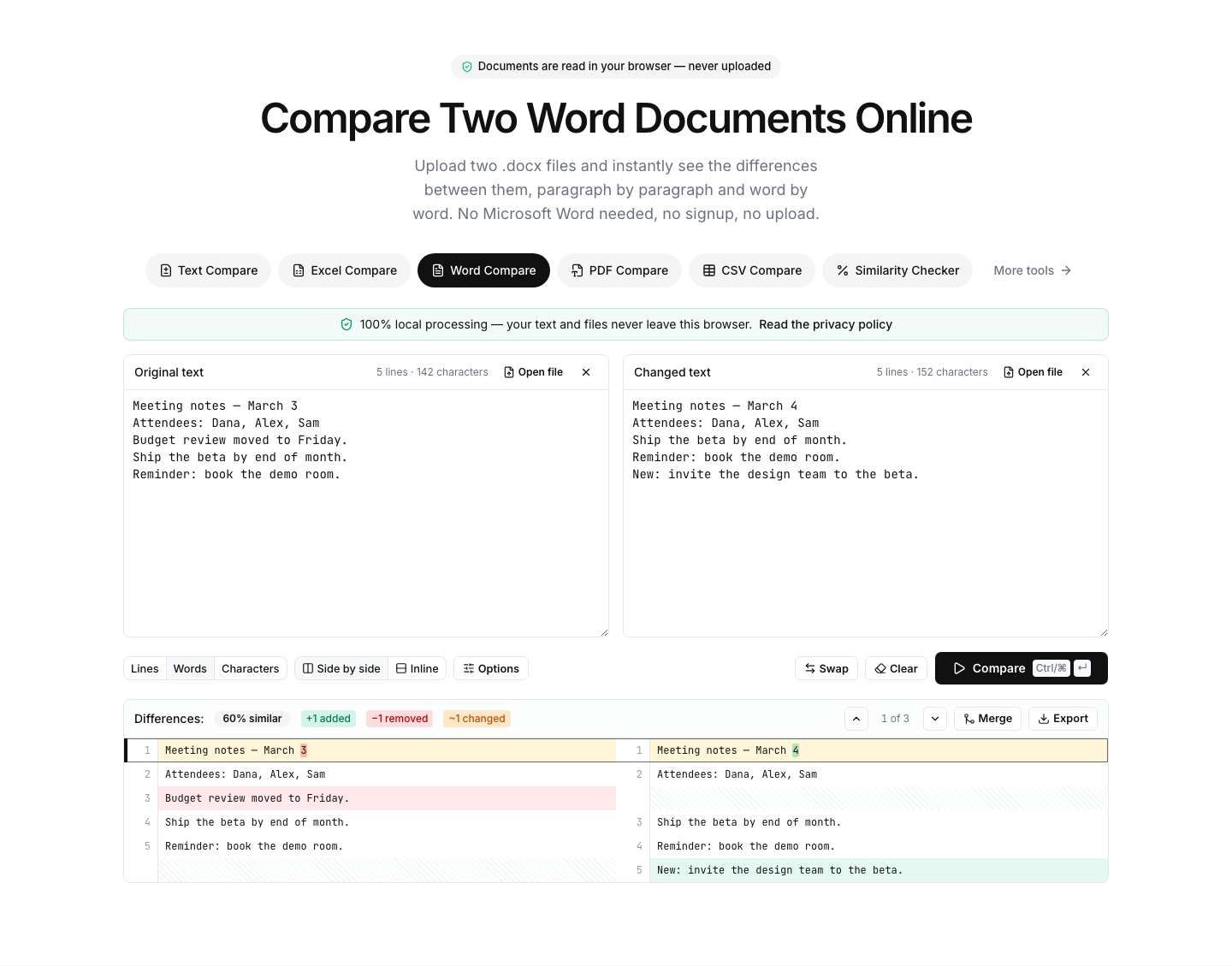
A safer approach is a comparison tool that reads the files inside your browser and never sends them anywhere. Our Word Compare tool works that way:
- Open the Word Compare page — no account, no install.
- Drop your two
.docxfiles into the left and right panels (or click Open file). The text is extracted locally in your browser. - Click Compare. Differences appear side by side, highlighted line by line and word by word.
- Switch granularity (lines, words, characters) or ignore case and whitespace if you only care about substantive edits.
- Export the result as a PDF or spreadsheet if you need to share the change list.
Because everything runs client-side, this works for confidential documents: you can verify with your browser's developer tools that no file leaves your machine. It is also the fastest option on a computer where Word isn't installed — a Chromebook, a locked-down office machine, or a phone.
Limitations: browser-based extraction reads the document's text, so pure formatting changes (bold, fonts, margins) are not flagged. Legacy .doc files from pre-2007 Word are not supported directly — open them in any word processor and save as .docx first.
Method 3: Paste both versions as plain text
For a short passage — a paragraph, an email draft, a clause — you don't need file handling at all:
- Open both documents and copy the relevant text.
- Paste the original into the left panel and the revision into the right panel of the text compare tool.
- Click Compare to see every added, removed, and changed line, with word-level highlights inside each changed line.
This is the quickest possible check, and the plain-text route sidesteps Word entirely. The obvious trade-off: you're comparing what you pasted, so images, tables, and formatting are out of scope, and for whole long documents Method 2 (which extracts the full file for you) is less error-prone than manual copy-paste.
Method 4: Compare the PDF exports
Sometimes you don't have the Word files at all — only PDFs exported from them, such as two versions of a signed agreement. In that case, compare the PDFs directly with the PDF Compare tool: it reconstructs the text of each PDF locally in your browser and diffs them the same way.
One caveat applies to every PDF-based workflow: PDFs store layout, not clean paragraphs, so line breaks may differ from the original Word file. Comparing at word granularity instead of lines usually cuts through that noise.
Compare, Track Changes, or Version History?
These three Word features answer different questions:
- Track Changes records edits as they happen. It only helps if it was switched on before the editing started — which is exactly what didn't happen when you're reaching for a comparison tool.
- Version History (for files stored in OneDrive or SharePoint) lets you reopen or restore older snapshots, but its change view is coarse; to see precise differences you still end up running Compare between two versions.
- Compare reconstructs the differences after the fact, whether or not anyone tracked their edits. That's why it's the right tool for "what did they change?" moments.
Frequently hit problems
The comparison is flooded with formatting changes. In Word's Compare dialog, click More and untick Formatting. In text-based tools this problem doesn't occur, because formatting isn't compared at all.
One file is an old .doc. Word's own Compare handles it. Browser-based tools generally don't — save the file as .docx first (File → Save As).
The documents are huge. Word's Compare can take minutes on very long, heavily revised documents. Text-based comparison is much faster; our tools process large texts in a background worker with a progress indicator, so the page stays responsive.
You need a record of the differences. Word's compared document can be saved as-is. From the Word Compare tool, export the highlighted diff as a PDF or a spreadsheet listing every change.
The bottom line
Use Word's built-in Compare when formatting matters and you have desktop Word. Use the online Word Compare tool when you want a fast, private answer on any device — your files never leave the browser. Fall back to plain-text comparison for snippets, and PDF comparison when exports are all you have.