Word vs PDF: Key Differences and How to Compare Across Formats
Word files reflow and stay editable; PDFs lock the layout for sharing. See what really separates .docx from PDF — and how to compare documents across both.
2026/08/11
Quick answer
A Word file (.docx) stores structured, editable content that reflows to fit whatever screen or paper it meets. A PDF stores a fixed page layout that looks identical everywhere but resists editing. Use Word while a document is still changing; use PDF once it's final and needs to travel. That difference explains when each format is the right choice, why conversion between them is lossy, and how to reliably compare a document that exists in both.
| Word (.docx) | ||
|---|---|---|
| What the file stores | Content and structure (XML) | Pages: text placed at coordinates |
| Layout | Reflows per device, fonts, printer | Fixed — identical everywhere |
| Editing | Native and easy | Limited and awkward |
| Text extraction | Clean paragraphs | Rebuilt from character positions |
| Best for | Drafting, collaboration, templates | Distribution, signing, archiving |
To compare: two .docx files go into the Word Compare tool, two PDFs into the PDF Compare tool, and for a mixed pair — one Word file, one PDF — copy the text of each into the text compare tool or export the Word file to PDF first. All three run entirely in your browser; nothing is uploaded.
What a .docx file really is
A .docx file is a ZIP archive containing XML files — rename one to .zip and you can open it and look inside. This format, Office Open XML, arrived with Office 2007 and is an international standard (ECMA-376, later ISO/IEC 29500).
The XML describes the document's content and structure: this is a paragraph, it uses the "Heading 2" style, this run of text is bold, this is a table with three columns. What it deliberately does not describe is where anything lands on a page. Page layout is computed fresh every time the document opens, based on the current page size, margins, printer driver, and available fonts. That's why a Word file can look subtly different on two machines — and why it's so pleasant to edit: insert a sentence and everything after it reflows automatically.
What a PDF really is
PDF was created by Adobe in the early 1990s to solve the opposite problem: making a document look exactly the same everywhere. It has been an open ISO standard (ISO 32000) since 2008, with a dedicated archival profile (PDF/A) that libraries and courts rely on.
Inside a PDF there are no paragraphs. There are pages, and on each page, drawing instructions: place these characters at these coordinates, in this font, at this size. The visual result is pixel-faithful, which is exactly what you want for a signed contract, an invoice, or a typeset report. The cost is that the file no longer knows what a paragraph, heading, or table is. When software extracts text from a PDF, it has to reverse-engineer lines and reading order from raw character positions — which works well most of the time, but explains why PDF line breaks rarely match the source document's.
One more property matters: many PDFs carry digital signatures, and PDF viewers flag any change made to the document after it was signed. Fixity is a feature.
When to use which
Choose based on what happens to the document next:
- Still being written or negotiated? Word. Everyone can edit, comment, and track changes, and the content reflows as it grows.
- Going out to people who should read it but not change it? PDF. It renders identically on every device, with no "it looks broken on my machine" surprises.
- Being signed? PDF, almost always — the fixed layout and signature support are the point.
- Being archived for years? PDF (ideally PDF/A). A Word file's appearance depends on the fonts and software of whoever opens it later; a PDF's does not.
The common workflow is both: draft and revise in Word, export to PDF at the finish line. Which raises the question of what that export actually preserves.
Converting between them: what survives, what doesn't
Word → PDF is the easy direction. Word exports to PDF natively (File → Save As or Export), and because the conversion runs the same layout engine that displays the document, fidelity is excellent. What you lose is everything that made the file editable: styles, structure, reflow. The PDF is a faithful snapshot — and only a snapshot.
PDF → Word is reconstruction, not conversion. Word has been able to open PDFs and convert them since Word 2013, and dedicated converters exist, but they are all guessing: inferring paragraphs from line spacing, tables from aligned text, headings from font sizes. Simple documents convert cleanly; anything with columns, dense tables, or unusual layout comes back needing manual repair. If the original .docx exists anywhere, track it down instead of converting the PDF.
The asymmetry is worth internalizing: Word → PDF discards editability by design; PDF → Word tries to reinvent structure that was thrown away, and can only approximate it.
How to compare documents across the two formats
Now the practical half. You have two versions of a document — perhaps in different formats — and need to know whether the wording matches. The strategy is the same in every case: extract the text of both versions locally and diff it. Which tool you start from depends on the pair.
A note on confidentiality first, since cross-format checks are often contracts: every tool below runs entirely inside your browser. The files are parsed locally, nothing is uploaded, and there's no account or install — safe for documents under NDA.
Two Word documents
Use the Word Compare tool:
- Drop both
.docxfiles into the panels (or click Open file). Text extraction runs locally, with a progress bar you can cancel. - The comparison starts automatically the moment both files are loaded — no button to click — and re-runs live whenever you change an option.
- Review differences side by side or inline, switch the Comparison level between lines, words, and characters, and export the highlighted diff as PDF, CSV, PNG, or HTML.
Files can be up to 10 MB each. Legacy .doc files from pre-2007 Word aren't supported directly — the tool will show an error asking you to save them as .docx first, which any word processor can do.
Two PDFs
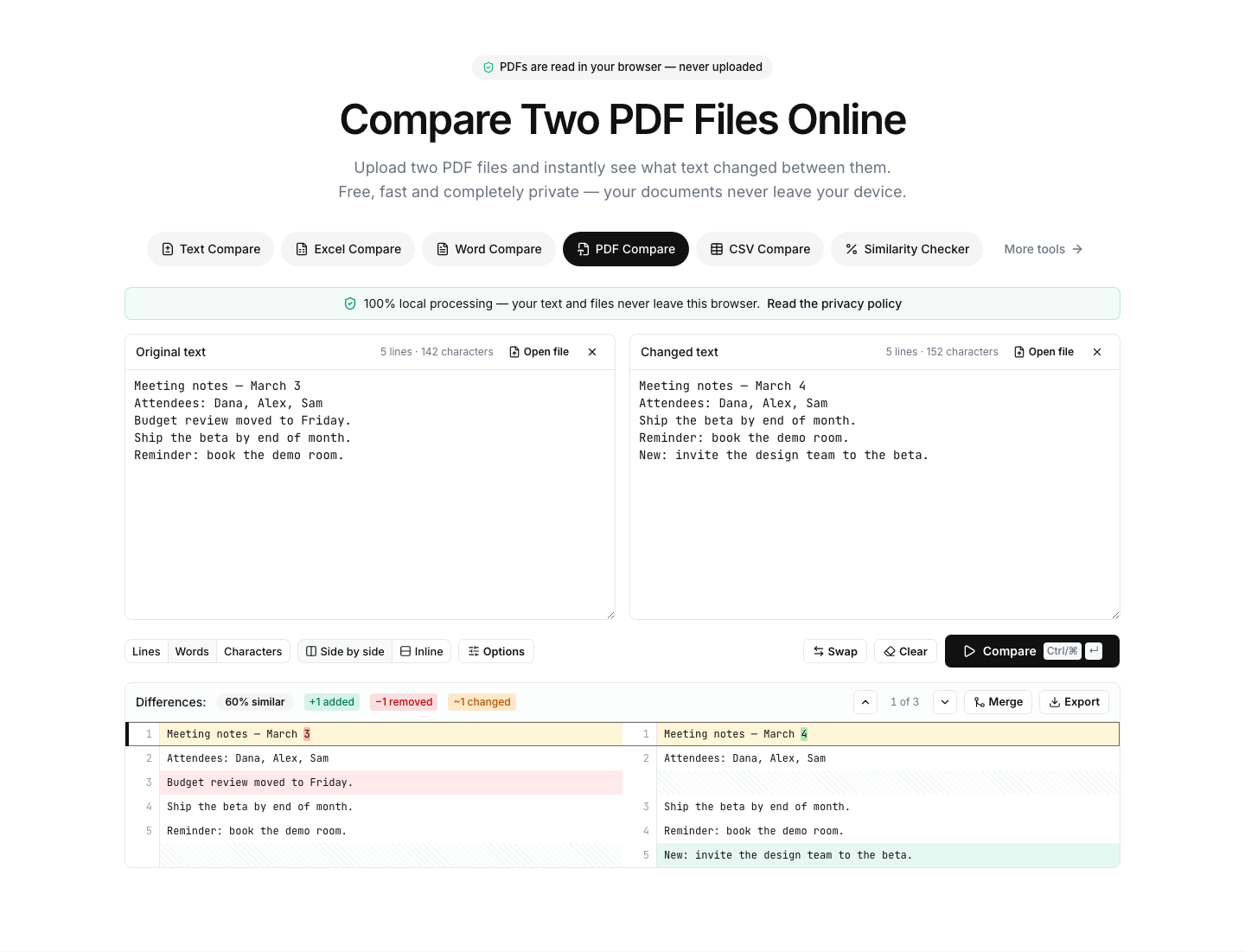
Use the PDF Compare tool. It extracts each PDF's text layer locally, rebuilds lines from character positions, and diffs the results the same way — automatic comparison once both files load, same views, options, and exports.
Two PDF-specific tips:
- Set the comparison level to Words. Because PDFs store layout rather than paragraphs, the reconstructed line breaks in two PDFs rarely align, and a line-level diff drowns in false changes. Word-level comparison ignores where lines wrap and shows you the edits that matter.
- Scanned PDFs won't work. A scan is a photograph of a page with no text layer underneath; the tool will report "No readable text was found in this file" rather than silently comparing nothing. There's no OCR — you'd need to obtain a text-based version of the document.
One Word file, one PDF
The classic case: "is this PDF really the contract we agreed in Word?" Two routes, both reliable.
Route 1 — paste both texts. Open the Word file and the PDF in their usual viewers, select all and copy the text from each, and paste them into the left and right panels of the text compare tool. Click Compare (or press Ctrl/Cmd+Enter). Then set the Comparison level to Words and enable Ignore whitespace — the two formats will never agree on line breaks and spacing, and these two settings strip that noise so only real wording changes remain highlighted.
Route 2 — level the playing field. Export the Word file to PDF (File → Save As → PDF) and compare the two PDFs in the PDF Compare tool. Both sides now pass through the same extraction process, which makes the diff cleaner, and you skip the manual copy-paste — useful for long documents where selecting everything by hand invites mistakes.
Either way, an empty diff at word level is strong evidence the wording is identical; any highlighted change is exactly where to look before you sign.
What a cross-format comparison can't tell you
Text diffs answer "did the words change?" — deliberately nothing more. Be aware of the boundaries:
- Formatting is out of scope. Fonts, bold, margins, colors, and page breaks aren't part of the extracted text, so a purely visual change won't be flagged.
- Images and drawings are invisible to a text comparison. If a chart or a scanned signature block changed, a text diff won't see it.
- PDF extraction includes page furniture. Running headers, footers, and page numbers exist as text on every PDF page, so they can surface as extra lines that the Word side doesn't have. At word level this is minor noise; just recognize it for what it is.
- Scanned or image-only PDFs have no text at all, as noted above — the comparison can't proceed without a text layer.
For the question that usually motivates a cross-format check — does the wording still say what we agreed? — these limits rarely matter. For a layout-sensitive review, you'd inspect the PDF visually as well.
The bottom line
Word and PDF are complements, not competitors: .docx stores editable structure that reflows, PDF stores a fixed, print-faithful page. Draft in Word, ship in PDF, and expect each conversion direction to lose something — editability going one way, layout fidelity coming back. When you need to verify that two versions match, diff the text locally: the Word Compare tool for two .docx files, the PDF Compare tool for two PDFs, and the text compare tool at word level for a mixed pair. Your files never leave your browser, and a clean word-level diff is the fastest honest answer to "is this really the same document?"